
When you share a product or resource, people need enough context to decide whether to open the link. A relevant image and a specific title can explain the offer before they reach the full page.
A branded link preview brings that introduction together. GetLinkCover lets you create a custom cover preview for a destination link, using an image and supporting copy to present what you are sharing.
You might use it for a digital workbook, a product collection, or a service page. The goal is simple: make the preview match the offer and give the reader a clear idea of what comes next.
Choose the page you want people to visit
Start with the destination. Open the page and check that it contains the information your preview will describe.
If you are promoting a workbook, use its specific sales or download page. If you are introducing a service, choose the page that explains that service. Sending visitors to a general homepage can leave them searching for the offer that caught their attention.
Check the page on your phone as well as your computer. Confirm that the relevant form, booking option, or purchase button is easy to find and works as expected.
Your cover introduces the destination. The destination still needs to explain the offer clearly.
Choose an image that represents the offer
Use an image that makes sense at a glance. For a workbook, that could be its actual cover or a clear view of an inside page. For a product bundle, show the items included in the bundle.
Keep the main subject easy to see. A small preview is a difficult place for a detailed collage, several paragraphs of text, or a product surrounded by distracting objects.
Use an image you own or have permission to use. Keep important text and details away from the edges, then check the result in the platform where you intend to share it. The visible crop may differ from the image you uploaded.
For a digital product, make the format clear in the surrounding copy. A book mockup can illustrate a downloadable workbook, but readers should not have to guess whether they are buying a printed book or a digital file.
Write a title that names the offer
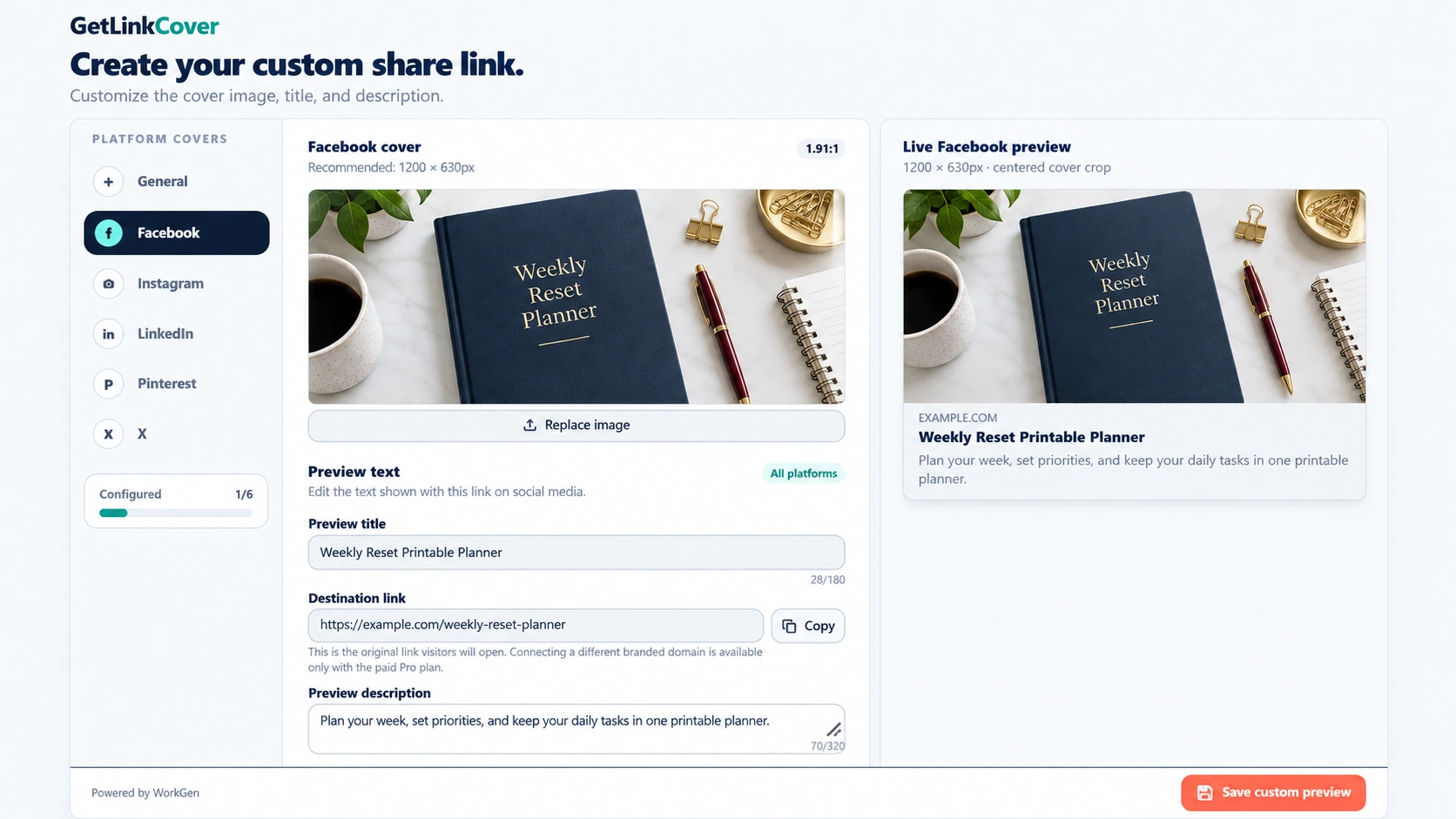
A useful title tells the reader what is behind the link. "Weekly Reset Printable Planner" is more informative than "Something Special for You."
Lead with the product, resource, or service name. Add the detail that matters most to the person seeing it, such as its format or purpose.
For a service, a title such as "Website Setup for Small Businesses" gives the visitor a clear starting point. For a workshop, use the workshop name and keep any time-sensitive details consistent with the registration page.
Avoid filling the title with repeated keywords or claims the destination cannot support. Specific wording gives the reader something concrete to evaluate.
Use the description to answer the next question
Once the reader knows what the offer is, explain what they can do with it or what they will find on the page.
For a fictional weekly planner, the description could read: "A printable planner for setting weekly priorities, tracking tasks, and reviewing what needs attention."
That sentence adds information instead of repeating the title. It also keeps the promise close to the product itself.
Keep the description focused. If the offer is a paid download, do not describe it as free. If registration is required, make that clear on the destination page and wherever it affects the reader's decision.
Build the cover in GetLinkCover
Open GetLinkCover with your destination link, image, title, and description ready. Use the cover editor to bring those elements together, then review the preview before sharing.
Check how the image and text work as one introduction. The title should describe the image, and both should match the page the visitor will reach.
For the fictional Weekly Reset Planner, the setup could be:
- Destination: the planner's individual sales page.
- Image: the real planner cover or a clearly presented digital mockup.
- Title: "Weekly Reset Printable Planner."
- Description: "A printable planner for setting weekly priorities, tracking tasks, and reviewing what needs attention."
Use the link produced by GetLinkCover when sharing the cover. Keep the original destination available so you can check it again whenever the offer changes.
Test the link where you plan to share it
Open the finished link and confirm that it leads to the correct page. Check the spelling, image, and description, then try the link in the actual platform you plan to use.
Social platforms and messaging apps can display previews differently. They may crop an image, shorten text, or retain an older preview. A cover that looks right in an editor still needs a check in its intended setting.
Do not rely on a preview to carry essential information that appears nowhere else. The linked page should remain clear and complete even when a platform does not display the full preview.
Common questions about link covers
Does a link cover replace my website or shop
No. It introduces the destination you are sharing. Your existing page still provides the full offer details and handles any booking, download, or checkout process.
Can I use it for something other than a product
Yes. A resource page, service offer, portfolio, or workshop registration page can also benefit from a clear introduction. Choose an image and wording that suit that particular destination.
Will a branded preview improve my search rankings
A cover is a presentation tool, not a guarantee of search visibility or sales. Its practical purpose is to make the shared link easier to recognize and understand.
Create a clear introduction for your next link
Choose one offer, use an image that represents it, and write copy that explains what the visitor will find. Test the destination before you share it, and review the cover when the offer changes.
Open GetLinkCover to create a cover for your next product, service, or resource link.
GetLinkCover is powered by WorkGen.