
A client sends a revision by email. The deadline is in a chat message, and the instructions are in a document you opened last week. Before you can start, you have to bring those details together again.
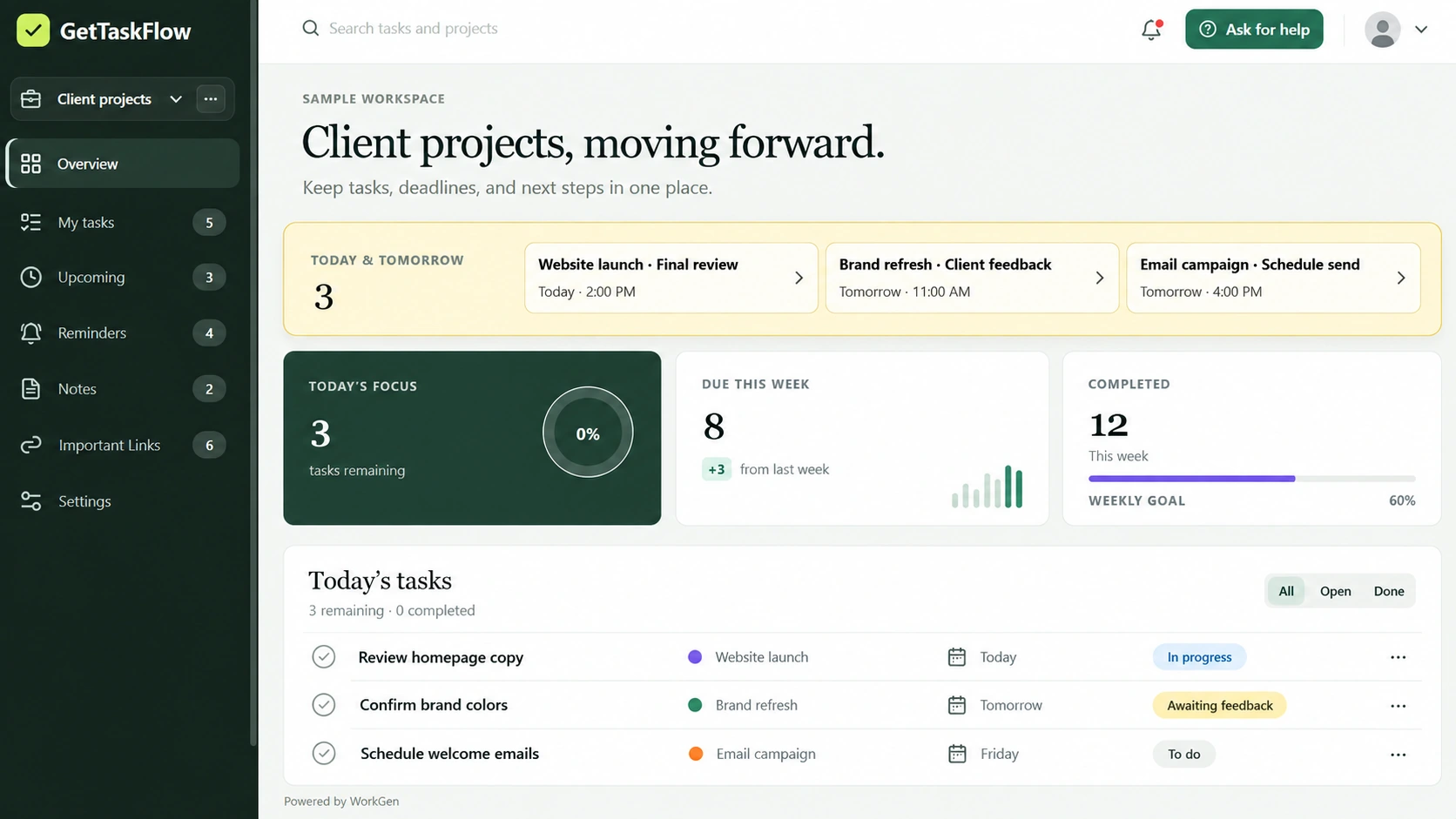
To organize client tasks, give each piece of work a clear action, a deadline, and a place for its instructions. GetTaskFlow brings projects, tasks, notes, and important links into one workspace, giving you a consistent place to return to during the day.
For virtual assistants, freelancers, and small teams, that can make the difference between a list of requests and a plan you can actually follow. Here is a practical way to set up your next client project.
Start with one clear project
Choose a piece of work with an identifiable outcome. A website launch, a month of podcast episodes, or a client onboarding process is a useful starting point.
Give the project a name that tells you whose work it is and what needs to happen. "Juniper Studio Website Launch" is easier to recognize than "New Project." If you handle several clients, use a consistent naming pattern so you can find the right work without opening every project.
Write down the intended result in a project note. For a website launch, that might be: "Publish the approved service pages and confirm that the inquiry form works." This gives you something concrete to check before calling the project complete.
Turn requests into specific tasks
A task should describe an action you can carry out. "Website" gives you a topic. "Review the service page copy" tells you where to begin.
For the fictional Juniper Studio launch, your task list could include:
- Confirm the final page copy with the client.
- Build the approved service pages.
- Test the inquiry form and check where submissions arrive.
- Review the pages on a phone.
- Send the finished pages for approval.
- Publish after receiving approval.
Break a larger task into subtasks when it contains several separate actions. Testing a form, for example, might involve checking required fields, submitting a test inquiry, and confirming that the message reaches the correct inbox.
GetTaskFlow supports tasks and subtasks, so you can keep those smaller actions connected to the work they belong to.
Set deadlines that leave room for review
Start with the client's final deadline, then work backward. If the site needs to launch on Friday, finishing the first draft on Friday leaves little room for feedback or corrections.
Set an earlier target for copy approval, another for page building, and time for testing before launch. Agree on those dates with the client where their input is needed.
Use priority to show which tasks need attention first. A broken inquiry form may need attention before a minor image adjustment. If every task is marked high priority, the label stops helping you decide what to do next.
When a deadline changes, update the task and explain the reason in your notes. That gives you a clearer record when you return to the project later.
Make responsibility clear
When several people contribute, assign the work so the next action has an owner. One person might prepare the copy while another builds the pages.
GetTaskFlow includes team assignment, which can support those handoffs. Add enough context for the person doing the task to understand the expected result and where to find the materials.
Keep approval responsibilities clear, too. Sending something for review is different from receiving approval. Record that distinction in the task or note so unfinished decisions do not disappear from view.
Keep instructions and useful links close
Save the details you expect to need again: the approved brief, the folder containing images, the draft page link, and the client's latest feedback.
Give links descriptive names. "Approved website copy" tells you more than "Document 3." When a client replaces a file or changes an instruction, update the reference so you are not working from an outdated version.
GetTaskFlow's notes and important links can serve as your reference point. The aim is to make the next work session easier to start without searching through a conversation history.
Review progress before sending an update
At the start of a work session, check upcoming deadlines and choose the next actions you can realistically complete. Before you finish, mark completed tasks and record anything waiting on a response.
This also gives you the material for a useful client update. For example: "The service pages are built and the form has been tested. I am waiting for approval of the final copy before publishing."
That message explains the current state and what happens next. A short, accurate update is more useful than a long list of activity with no clear outcome.
Common questions about organizing client work
Can I use GetTaskFlow when I work alone
Yes. You can use it to organize your own tasks, notes, and project links. Team assignment becomes useful when other people are involved, but a solo workflow still benefits from clear next actions.
What should I put in a task instead of a note
Use a task for something that needs to be done, such as testing a form. Use a note for context, instructions, or a decision you may need to refer to later.
How often should I review my task list
Start with a brief check at the beginning and end of your workday. Add a weekly review to catch older tasks, changing deadlines, and work waiting on someone else.
Organize your next client project
Choose one active project and add the next few actions, their dates, and the instructions you need. Keep the setup manageable, then adjust it as you learn what makes your work easier to follow.
Open GetTaskFlow to begin organizing your client tasks and project details.
GetTaskFlow is powered by WorkGen.